
Two-Factor Authentication
Duo two-factor authentication (2FA) is required for remote access from outside the CU trusted network.
Although it may seem like an inconvenience, two-factor authentication is a solution used to protect you from scammers accessing your information and to protect you from scammers impersonating you.
As more and more people become victim to advanced targeted phishing email campaigns and unknowingly give their password to scammers through an external website that looks like ours, as well as more and more external database exploits happen where people are using same or similar passwords, we have seen an ever-increasing amount of compromised accounts. With 2FA enforced, a scammer is unable to access protected resources and information by only knowing your password.
Duo 2FA Enrollment Info
Simply go to the Duo Management Portal at https://duo.commonwealthu.edu/ to enroll your device or manage your devices. You may also be prompted to enroll inline when you start using your new account.
If you have a smartphone, we highly recommend you enroll through the web browser on the device (i.e. Chrome, Safari, Firefox). This helps ensure you choose the correct app from the app store and streamlines activating your account on the device. When you need a second factor in order to log on remotely, using the "Duo Push" authentication method for the "Duo Mobile" app (by "Duo Security") on a smartphone is the most secure and user-friendly method.
If you do not have a smartphone, you may enroll a basic cell phone from a computer web browser.
If you do not ever access your CU account from outside the CU trusted network, then enrolling is not required.
If you do not have a mobile device, you may sign-out a small Duo hardware token for your keyring from the technology helpdesk at your campus, which will allow you to obtain passcodes.
How Duo 2FA changes your logon experience
2FA combines something you know (your password) with something you have (like your mobile phone).
When you log in to a Duo-protected application from outside the CU trusted network, you will still enter your password. Then you will be required to verify your identity, such as through a push notification on your smartphone or a text message passcode on a basic cell phone.
If your password becomes compromised and a scammer attempts to access your account remotely with your password through a Duo-protected application, they will not be able to successfully log in. If you did not trigger a Duo push notification by logging in to a Duo-protected app from outside the CU network, be sure NOT to approve the logon attempt. This will keep the scammer out of your account and alert Network Services that your password is compromised, at which time you should change your password immediately.
Video explanations of 2FA and Duo Push
- Please watch these short Duo videos to become familiar with Duo 2FA:
Duo YouTube Video (1:59): What is Two-Factor Authentication?
Duo YouTube Video (1:17): An Introduction to Duo 2FA
Duo YouTube Video (0:20): 2FA with Duo Push - Please watch the two videos associated with your campus for examples showing enrollment and Duo Push:
CU IMS Video (1:35): Bloomsburg DEMO: Enroll your iPhone in Commonwealth University Duo Management Portal
CU IMS Video (1:13): Bloomsburg DEMO: Accessing Microsoft 365 from off-campus using 2FA with Duo Push
CU IMS Video (1:35): Lock Haven DEMO: Enroll your iPhone in Commonwealth University Duo Management Portal
CU IMS Video (1:13): Lock Haven DEMO: Accessing Microsoft 365 from off-campus using 2FA with Duo Push
CU IMS Video (1:35): Mansfield DEMO: Enroll your iPhone in Commonwealth University Duo Management Portal
CU IMS Video (1:13): Mansfield DEMO: Accessing Microsoft 365 from off-campus using 2FA with Duo Push
Duo 2FA when traveling abroad
If you travel outside the country without the mobile device(s) you've enrolled into Duo, you need to sign-out a Duo hardware token from your campus technology helpdesk prior to departure. This duo hardware token fits on your keychain and allows you to obtain a passcode when you need one.
Information about other possible options using a device instead of the Duo hardware token:
- If you take your U.S. mobile device that you've enrolled and activated, you will be able to do a Duo Push when you have it connected via Wi-Fi or foreign mobile data service.
- If you take your U.S. mobile device that you've enrolled and activated, while you do not have Wi-Fi or foreign mobile data service, you can still open the "Duo Mobile" app to obtain a valid passcode (even though it's not connected to the Internet).
- If you take your U.S. mobile device and will have foreign mobile service and can still receive text messages at your existing number, you will be able to obtain a text message passcode (although in this case, a Duo Push should be preferred via activated Duo Mobile app).
- If you will instead have a separate foreign mobile device and already know what your foreign cell phone number will be, you can enroll it as an additional device/number in the Duo Device Management Portal before you leave while you still have access to your U.S. mobile device to pass 2FA.
Duo 2FA options in detail
You are able to enroll smartphones, basic cell phones, and tablets. If you have none of these, you will be able to obtain a small duo hardware token for your keyring from your campus technology helpdesk.
The second factor available depends on your enrolled devices. You can do Duo Push (Internet-connected smartphone or tablet with activated Duo Mobile app), text message passcode (basic cell phone or smartphone), Duo Mobile passcode (Duo Mobile app on an offline/online smartphone or tablet), hardware token passcode (Duo hardware token), or platform authenticators (like Touch ID, Face ID, Windows Hello, or Android biometrics) and roaming authenticators (like security keys). We always recommend enrolling your smartphone using the Duo Mobile app so that you always have your second factor with you as an option to help you authenticate from anywhere. To add or edit your devices, during authentication, choose "Other Options" and then choose "Manage Devices".
When you are logging on to a standard web resource, the prompt will choose the best method for you, which would be a Duo Push if you have an activated Duo Mobile app or potentially a platform authenticator like MacOS TouchID or Windows Hello, but you could always choose "Other Options" to choose your authentication method, such as "Duo Push", "Text message passcode", or "Duo Mobile passcode". If you have typical browser settings, you should be able to choose a "Remember me" option during logon to prevent future second-factor challenges in that browser for a time. You may also get asked if you are on a shared computer or not, which will also help determine if it should remember you on that browser/computer.
Troubleshooting
If you do not have the convenient Duo Push option or it stopped working, it is because you do not currently have the Duo Mobile app activated. You should [Re]activate Duo Mobile if you did not fully complete the enrollment process, you wiped your mobile device, you fully uninstalled the Duo Mobile app, or you replaced your smartphone and have the same phone number. Log in to the Duo Management Portal (which in this case would require you to request a text message passcode to pass 2FA) and look for the "[Re]activate Duo Mobile" button to activate the app. If you don’t have the option, be sure your phone number is configured correctly as either Apple or Android and look for the link to the app store and download and install the "Duo Mobile" app. If the phone number and platform is correct and you have Duo Mobile installed, choosing "[Re]activate Duo Mobile" should give you the steps to enable the Duo Push option for future authentications.
Update Duo Mobile to 4.85.0 or higher by 2/2/26 to continue using Duo Push
Beginning 2/2/26, you will no longer be able to receive Duo Pushes if you are running a Duo Mobile app version below 4.85.0, which was released about a year earlier, due to outdated encryption certificates.
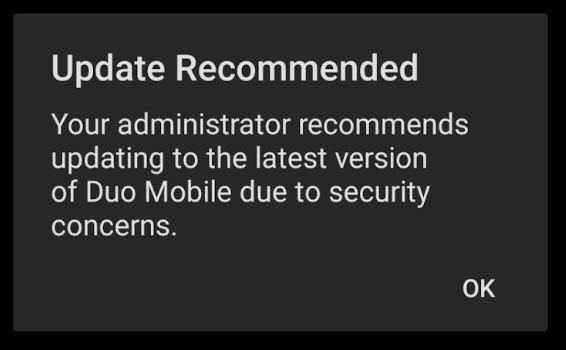 If the Duo Mobile app is showing an "Update Recommended" warning message, your version of the app is affected, and you should go to the App Store or Play Store and update your Duo Mobile app:
- Open the App Store or Play Store
- Search for "Duo Mobile"
- Tap Update
If you are unable to update the Duo Mobile app, you will no longer be able to use Duo Push for 2FA, but you will still be able to use passcodes found in the Duo Mobile app or obtained via text message by choosing "Other Options" during Duo 2FA.
See below for more details on hardware and software version compatibility with the Duo Mobile app:
Info for Apple iPhoneiPhone/iPad iOS devices (as of January 2026)
- If you are running iOS 16 (released 9/12/22) or newer, you will be able to update the Duo Mobile app in the App Store.
iPhoneThe8followingthrough iPhone 13devices can support iOS 16 or later, but may require that you run a system update.:
iPhone 8 through iPhone 13
iPad 6th Gen through 9th Gen
iPad Mini 5th Gen through 6th Gen
iPad Air 3rd Gen through 5th Gen
iPad Pro 1st Gen through 5th GeniPhoneThe7followingand earlierdevices cannot support iOS 16 and therefore cannot update the Duo Mobileapp.app:
iPhone 7 and older
iPad 5th Gen and older
iPad Mini 4th Gen and older
iPad Air 2nd Gen and older
iPod Touch 7th Gen and older (No iPod Touch is supported)iPhoneThe14followingand newerdevices shipped with iOS 16 or later and therefore natively support updating the Duo Mobileapp.app:
iPhone 14 and newer
iPad 10th Gen and newer
iPad Mini 7th Gen and newer
iPad Air 6th Gen and newer
iPad Pro 6th Gen and newer
Info for Samsung Galaxy Android devices (as of January 2026)
- If you are running Android 11 (released for Samsung Galaxy Android devices in 2022) or newer, you will be able to update the Duo Mobile app in the Play Store.
SamsungTheGalaxyfollowingS10 through Samsung Galaxy S20devices can support Android 11 or later, but may require that you run a system update.
Samsung Galaxy
Samsung Galaxy Note 10 through Note 20
Samsung Galaxy Tab S6 through Tab S7
Samsung Galaxy Z Fold 1 through Fold 2
Samsung Galaxy Z Flip 1 through Flip 2
Samsung Galaxy A series or M series released in approximately mid-2020 to mid-2021
The following devices cannot support Android 11 and therefore cannot update the Duo Mobile
Samsung Galaxy
Samsung Galaxy Note 9 and older
Samsung Galaxy Tab S5 and older
Samsung Galaxy A series or M series released before approximately mid-2020
The following devices shipped with Android 11 or later and therefore natively support updating the Duo Mobile
Samsung Galaxy S21 and newer
Samsung Galaxy Tab S8 and newer
Samsung Galaxy Tab S7 FE (NOT other S7 series Tabs)
Samsung Galaxy Z Fold 3 and newer
Samsung Galaxy Z Flip 3 and newer
Samsung Galaxy A series or M series released in approximately mid-2021 or later
Info for Google Pixel Android devices (as of January 2026)
- If you are running Android 11 (released for Google Android devices on 10/19/21) or newer, you will be able to update the Duo Mobile app in the Play Store.
- Google Pixel 2 through Google Pixel 4 can support Android 11 or later, but may require that you run a system update.
- Google Pixel 1 cannot support Android 11 and therefore cannot update the Duo Mobile app.
GoogleThePixelfollowing5 and newerdevices shipped with Android 11 or later and therefore natively support updating the Duo Mobileapp.app:
Google Pixel 5 and newer
Google Pixel Tablet 1 and newer
Info for Duo Mobile app, including checking your version
To check your Duo Mobile app version:
- Launch Duo Mobile app on the mobile device.
- Open the side navigation drawer in the Duo app by tapping the three-line menu icon in the upper-left corner of the screen.
- The app version will be displayed at the bottom of the navigation drawer.
Check the version carefully; Note that the latest version as of January 2026 is v4.104.0, which is newer than v4.85.0
- Beginning around the end of April 2026, Duo Mobile in the App/Play Store will only support iOS 17+ and Android 12+
- Duo provides help articles that show the most current info regarding iOS and Android versions that Duo Mobile supports.
- It is good practice to allow apps on your device to auto-update so that they receive the latest security fixes.