Wi-Fi
Commonwealth University provides wireless networks deployed across the Bloomsburg, Lock Haven, and Mansfield campuses. These networks are available to faculty, staff, students, and guests.
More information is available on the pages below.
- Wi-Fi Overview
- Connecting to Wi-Fi
- Wi-Fi Requirements
- Wi-Fi Performance
- Prohibited Wireless Devices
- Wi-Fi Troubleshooting Guide
Wi-Fi Overview
Multiple wireless networks are available depending on the use case. The preferred network for personal phones, tablets, and computers is CommonwealthU, which allows you to connect using your CU username and password.
Some personal devices do not support username/password wireless authentication. These devices should use CU Registered or CU Registered Open instead Check out the locating your device's MAC address page for step-by-step instructions on connecting and registering common devices.
If you are encountering issues connecting to Wi-Fi, please see the Wi-Fi Troubleshooting Guide for possible solutions.
Device Registration
Personal devices connecting to CU Registered or CU Registered Open must be registered. More information about this process is available in the Network Registration section.
You may need to disable MAC address randomization on devices before connecting to CU Registered or CU Registered Open.
Networks
CommonwealthU
This is the preferred wireless network for personal phones, tablets, and computers belonging to faculty, staff, and students.
Connect to this network using your CU username and password. This network provides an encrypted wireless connection.
If you are prompted for network settings while connecting, here's what you need to know:
- Security type: WPA3 Enterprise (preferred) or WPA2 Enterprise (supported)
- Encryption type: AES
- Mode: Automatic
- EAP method: PEAP
- Phase 2 authentication: MSCHAPv2
- Trusted root certificate authority: Sectigo Public Server Authentication Root R46
- Server name: commonwealthu.edu
- CA certificate: Use system certificates
- Domain: commonwealthu.edu
- Username or Identity: Your full CU account username, such as flast@commonwealthu.edu or abc12345@commonwealthu.edu
- Anonymous identity: (leave blank)
- Password: Your CU account password
CU Registered Open
This wireless network is available for personal devices belonging to faculty, staff, students, and guests.
Game consoles, streaming devices, and smart TVs must be manually registered before connecting to this network.
Computers, phones, and tablets should automatically begin the registration process upon connecting to this network for the first time. If registration does not begin automatically, open a web browser and visit any website to initiate the process.
CU Registered
Devices must be registered before connecting to this network.
This wireless network is available for personal devices belonging to faculty, staff, students, and guests. It provides an encrypted wireless connection for devices that do not support username/password wireless authentication.
Each device must be individually registered before using this network. During registration, a unique password will be assigned to each device that must be provided when connecting. It is not possible to connect to this network using your CU account password.
CU Managed
The CU Managed network will not work on personal devices.
All University-managed devices are automatically configured to connect to this wireless network. It is not necessary to manually configure university-managed devices, and doing so may cause problems.
Connecting to Wi-Fi
Most devices can be connected with just a few quick steps. For some common devices, we’ve provided complete beginning-to-end instructions below. Follow the guide that matches your device to make sure it connects smoothly to the campus network.
Computers
Apple Mac (macOS)
Apple Mac
- Go to Wi-Fi settings
- Move your mouse over CommonwealthU and click Connect
- Leave Identity set to None
- Log in using your CU account
- If you are prompted to verify a certificate, confirm it is for the server commonwealthu.edu and click Continue
- Enter your computer password to store the certificate. If you skip this step, you will be prompted to verify the certificate next time you connect.
Windows
Windows 11
- Click the Start button
- Navigate to Settings > Network & Internet > Wi-Fi
- Expand Show available networks
- Select CommonwealthU
- Check Connect automatically
- Click Connect
- Log in using your CU account
- Click OK
- If you are prompted to verify a certificate, confirm it is for the server commonwealthu.edu and click Connect
Linux
Linux using GNOME
- Open Settings
- Select Wi-Fi
- Click CommonwealthU
- Configure as follows:
- Wi-Fi security: WPA & WPA2 Enterprise
- Authentication: Protected EAP (PEAP)
- Domain: commonwealthu.edu
- No CA certificate is required: Checked
- PEAP version: Automatic
- Inner authentication: MSCHAPv2
- Username: (your CU account username)
- Password: (your CU account password)
- Click Connect
Linux using KDE
- Open System Settings
- Select Network > Wi-Fi & Internet
- Click CommonwealthU
- On the Wi-Fi tab, configure as follows:
- SSID: CommonwealthU
- Mode: Infrastructure
- Security: WPA2/WPA3 Enterprise
- Authentication: Protected EAP (PEAP)
- PEAP version: Automatic
- Inner authentication: MSCHAPv2
- Username: (your CU account username)
- Password: (your CU account password)
- Domain: commonwealthu.edu
- Click Save
Linux text-based
- From a shell, run nmtui (may require sudo, su, etc.)
- Select Edit a connection
- Select <Add>
- Select Wi-Fi
- Configure as follows:
- Profile name: CommonwealthU
- SSID: CommonwealthU
- Mode: <Client>
- Security: <WPA & WPA2 Enterprise>
- Authentication: <PEAP>
- Domain: commonwealthu.edu
- PEAP version: <Automatic>
- Inner authentication: <MSCHAPv2>
- Username: (your CU account username)
- Password: (your CU account password)
- Leave all other values at defaults
- Select <OK>
- Select <Back>
- Select Quit
Phones and Tablets
Apple iPhone/iPad (iOS)
Apple iPhone/iPad (iOS)
- Go to Wi-Fi settings
- Tap CommonwealthU
- Log in using your CU account
- Tap the checkmark
- If you are prompted to verify a certificate, confirm it is for the server commonwealthu.edu and tap Trust
Google Pixel (Android)
Google Pixel (Android)
- Pull down the notification area
- Long press Internet
- Tap CommonwealthU
- Configure as follows:
- EAP method: PEAP
- Phase 2 authentication: MSCHAPv2
- CA certificate: Use system certificates
- Domain: commonwealthu.edu
- Identity: your CU username
- Password: your CU password
- Tap Connect
Samsung Galaxy (Android)
Samsung Galaxy (Android)
Registering your device
- Pull down the notification area
- Long press Wi-Fi
- Tap Details
- Tap CommonwealthU
- Configured as follows:
- EAP method: PEAP
- Phase 2 authentication: MSCHAPv2
- CA certificate: Use system certificates
- Domain: commonwealthu.edu
- Identity: your CU username
- Password: your CU password
- Tap Connect
Other Devices
Some personal devices do not support username/password wireless authentication and should be registered for CU Registered or CU Registered Open instead. More information about this process is available in the Network Registration section.
Experiencing Wi-Fi issues?
Installing the latest operating system updates is an important first step. Visit our Wi-Fi Troubleshooting Guide to learn why updates matter, how to update your device, and find guidance for known platform-specific issues.
Wi-Fi Requirements
Supported Devices
Our network supports most modern laptops, smartphones, tablets, and other Wi-Fi–capable devices.
Recommended Hardware
For the most reliable performance – especially in areas with high signal congestion or heavy device use – we recommend using a Wi-Fi 6 (802.11ax) adapter.
For desktop computers, adapters that include a desktop cradle and larger antenna tend to provide:
-
Better signal reception when placed away from the computer or under a desk
-
Improved stability and speed in dense wireless environments
- Fewer dropouts and better performance during peak usage
The Netgear Nighthawk A8000 and TP-Link Archer TXE50UH are both good examples of a device that should work well in most situations.
Wi-Fi Performance
Our Wi-Fi network is designed to provide fast, reliable access across campus. However, wireless performance can be affected by many factors – some within our control, and others within yours. This page explains what can impact your connection and how to get the best possible experience.
Wireless Interference
Wi-Fi operates in shared frequency bands, so other devices using the same frequencies can cause slow speeds, dropped connections, or higher latency. Common sources of interference include:
-
Non-Wi-Fi wireless devices, such as:
- Wireless HDMI transmitters
-
Bluetooth speakers and headphones
-
Wireless keyboards and mice
-
Game controllers
-
Personal routers, hotspots, and extenders, which create competing networks that are not optimized to avoid interference
-
Microwave ovens, especially when located near access points
When possible, use wired peripherals or turn off unnecessary wireless devices near your computer.
Device Hardware and Placement
Not all Wi-Fi adapters perform equally. Performance can be affected by:
-
Older adapters that only support 2.4 GHz or earlier standards like 802.11n
-
Weak antennas or adapters embedded behind metal cases or desks
-
Adapters without cradles, which are limited by their position and can’t be moved for better signal
We recommend using a Wi-Fi 6 (802.11ax) adapter with a desktop cradle and larger antenna. These models can be placed away from your computer, improving reception and stability.
Environmental Factors
Wi-Fi signals can be absorbed or reflected by:
-
Metal surfaces and filing cabinets
-
Concrete walls
-
Water (including aquariums and people)
Repositioning your device or adapter just a few feet can make a noticeable difference.
Prohibited Wireless Devices
To ensure stable, high-performance Wi-Fi across campus, certain types of devices are not permitted. These devices interfere with campus Wi-Fi operations and can cause widespread performance issues for nearby users.
Prohibited Device Types
| Category | Examples |
|---|---|
| Personal routers and access points | Home Wi-Fi routers, mesh nodes, “travel” routers, wireless printers acting as access points |
| Mobile hotspots and tethering | Phone or tablet hotspot mode, dedicated hotspot devices (e.g., Verizon Jetpack, Nighthawk M1) |
| Wi-Fi extenders and repeaters | Range extenders, signal boosters, wireless bridges |
| Ad-hoc or peer-to-peer networks | Computer-to-computer (ad-hoc) Wi-Fi setups |
Additional Notes
-
Do not plug in or power on these devices anywhere in campus buildings.
-
If you need additional coverage or signal strength in your area, contact the Technology Help Desk. We’ll evaluate the space and, if appropriate, make adjustments to our managed access points.
-
Personal devices like phones, laptops, tablets, smart speakers, and IoT devices are allowed – as long as they connect to the official campus Wi-Fi and do not broadcast their own networks.
Wi-Fi Troubleshooting Guide
Update Your Device First
Operating system updates often include fixes for Wi-Fi problems, updated wireless drivers, and compatibility improvements. Before troubleshooting a connection issue, install all available updates and restart the device.
- Windows: Select Start > Settings > Windows Update > Check for updates. Install any available updates, then restart the computer.
- macOS: Select the Apple menu > System Settings > General > Software Update. Install any available updates, then restart the Mac.
- Android: Open Settings > System > Software update and follow the on-screen instructions. The exact menu names may vary depending on the device manufacturer.
- iPhone or iPad: Open Settings > General > Software Update. Tap Download and Install if an update is available.
If the device cannot connect to Wi-Fi, use a wired connection, mobile data, a hotspot, or another available network to download the updates.
Known Issues
Apple Devices
Apple Devices
The information below only applies if you are registering your device. Avoid registration and password sync issues by connecting to CommonwealthU.
Not Prompted to Register
If you don't automatically get prompted to register your device when connecting to CU Registered Open for the first time:
- Make sure auto-login is enabled in CU Registered Open settings.
- If you do not have an option for auto-login, try forgetting the CU Registered Open network and setting it up again.
- As a last resort: Open a web browser and visit any website to manually initiate the registration process.
Repeatedly Prompted for Wi-Fi Password
Apple devices that are signed into the same iCloud account will sync the Wi-Fi password for CU Registered to all other devices. To avoid issues, you must specify the same password on all Apple devices during registration.
Once you encounter this problem, it may be necessary to forget the network on all devices and delete the Wi-Fi password from your iCloud account.
To forget the Wi-Fi network:
- Go to Wi-Fi settings
- Click the three dots or tap the blue information icon next to CU Registered
- Select Forget This Network
- Repeat this procedure on all Apple devices
Next, on an Apple Mac:
- Click the magnifying glass 🔍 near the upper right corner
- Type Keychain Access and press enter
- Search for CU Registered
- Select the first item, then press the delete key

- It may be necessary to enter your computer password to confirm this change
- If there are multiple entries, delete them all
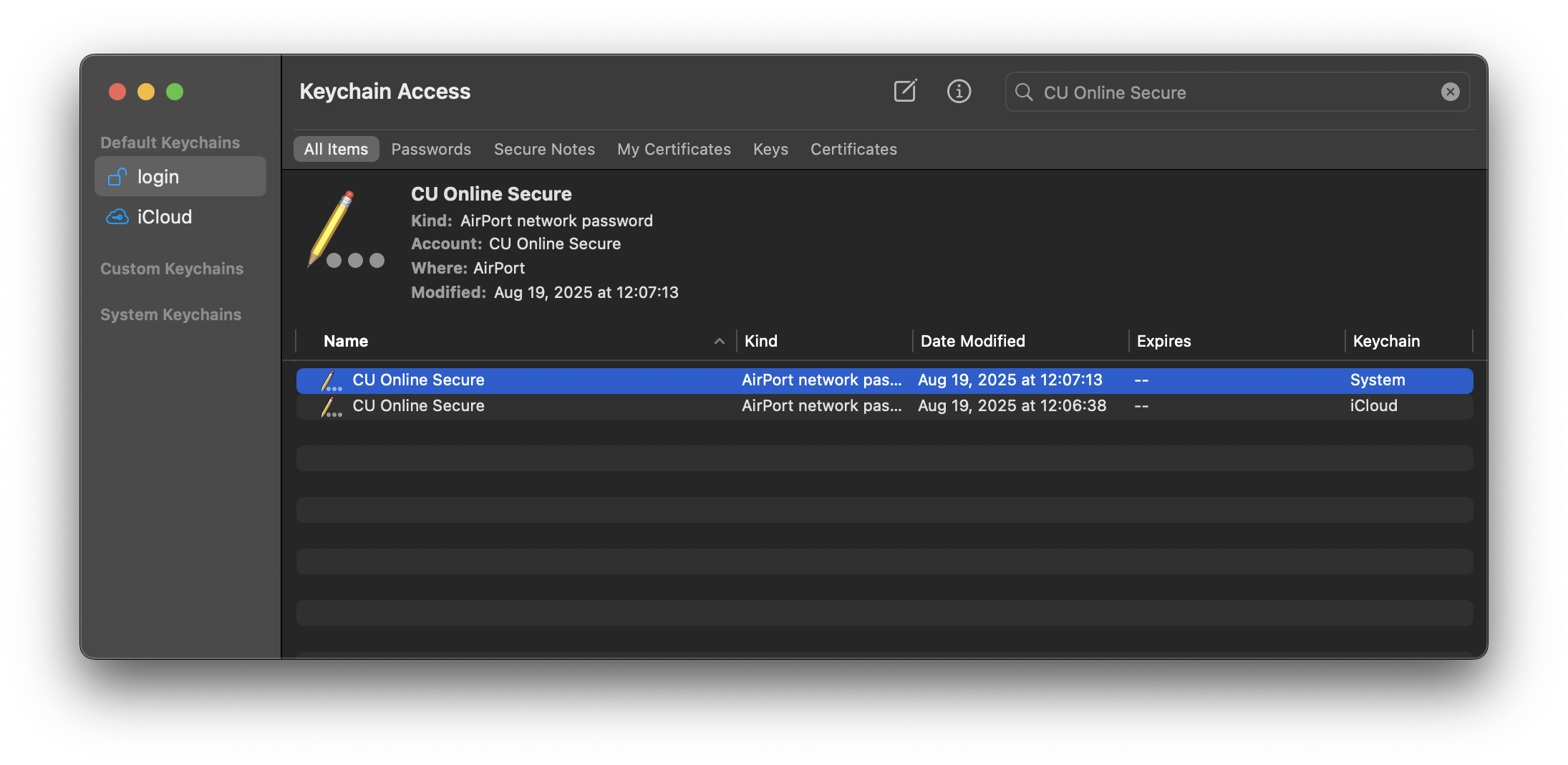
Once you have forgotten the network on all devices and removed it from your iCloud keychain, make sure you have the same password set for all devices using the Network Registration portal at https://netreg.commonwealthu.edu. Now you can set up CU Registered again on your devices using the following instructions:
Don't forget to turn off Private Wi-Fi address when you connect to CU Registered again.
Sony PlayStation
Sony PlayStation
Sony PlayStations sometimes get confused by the optional encryption on the CU Registered Open Wi-Fi network. The easiest way to resolve this issue is to use CU Registered. If you would like to use CU Registered Open, it is still possible to connect, but requires a few extra steps.
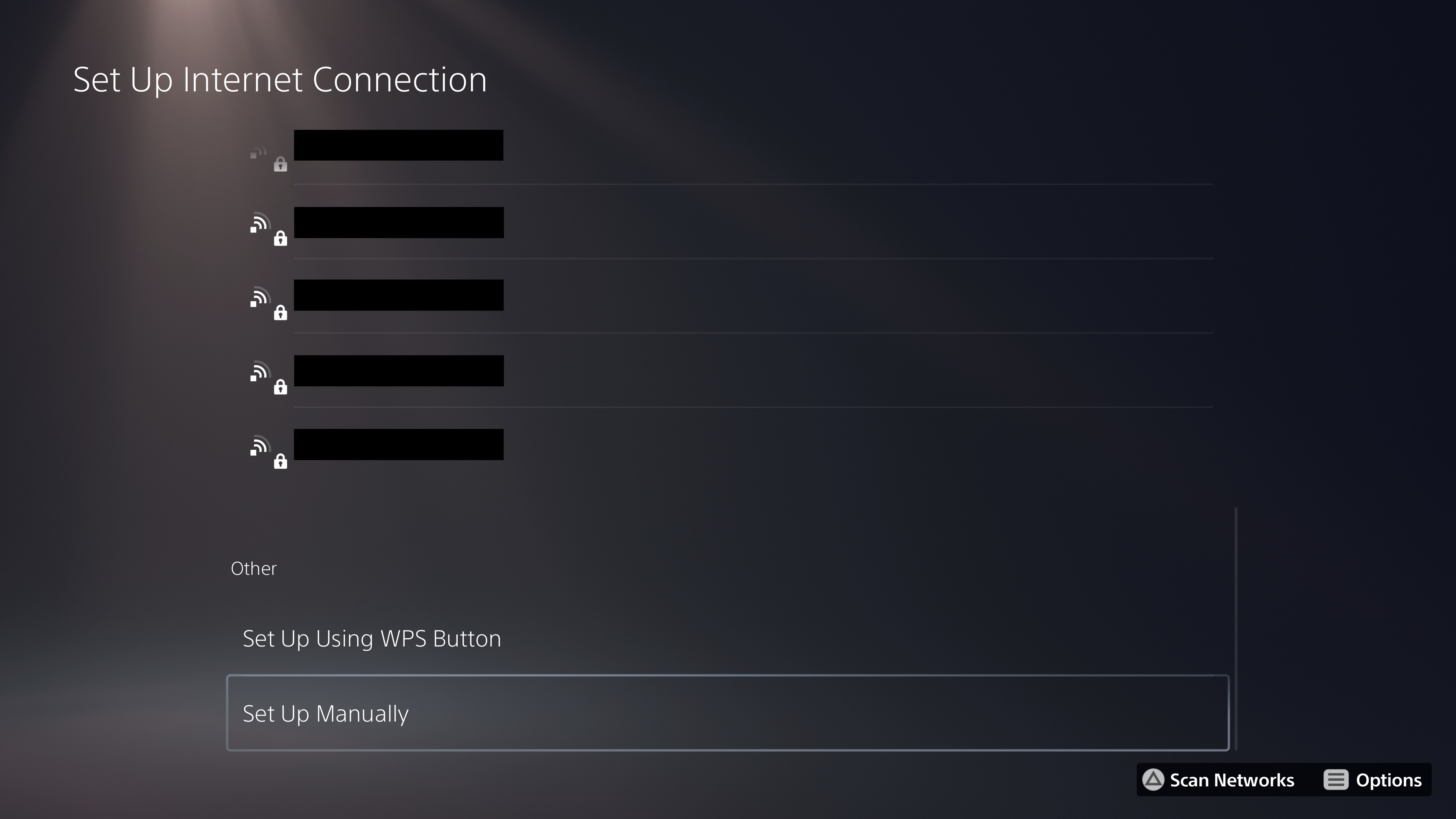
If you are encountering this problem, you will see a lock icon on the CU Registered Open network and be prompted for a password if you select it.
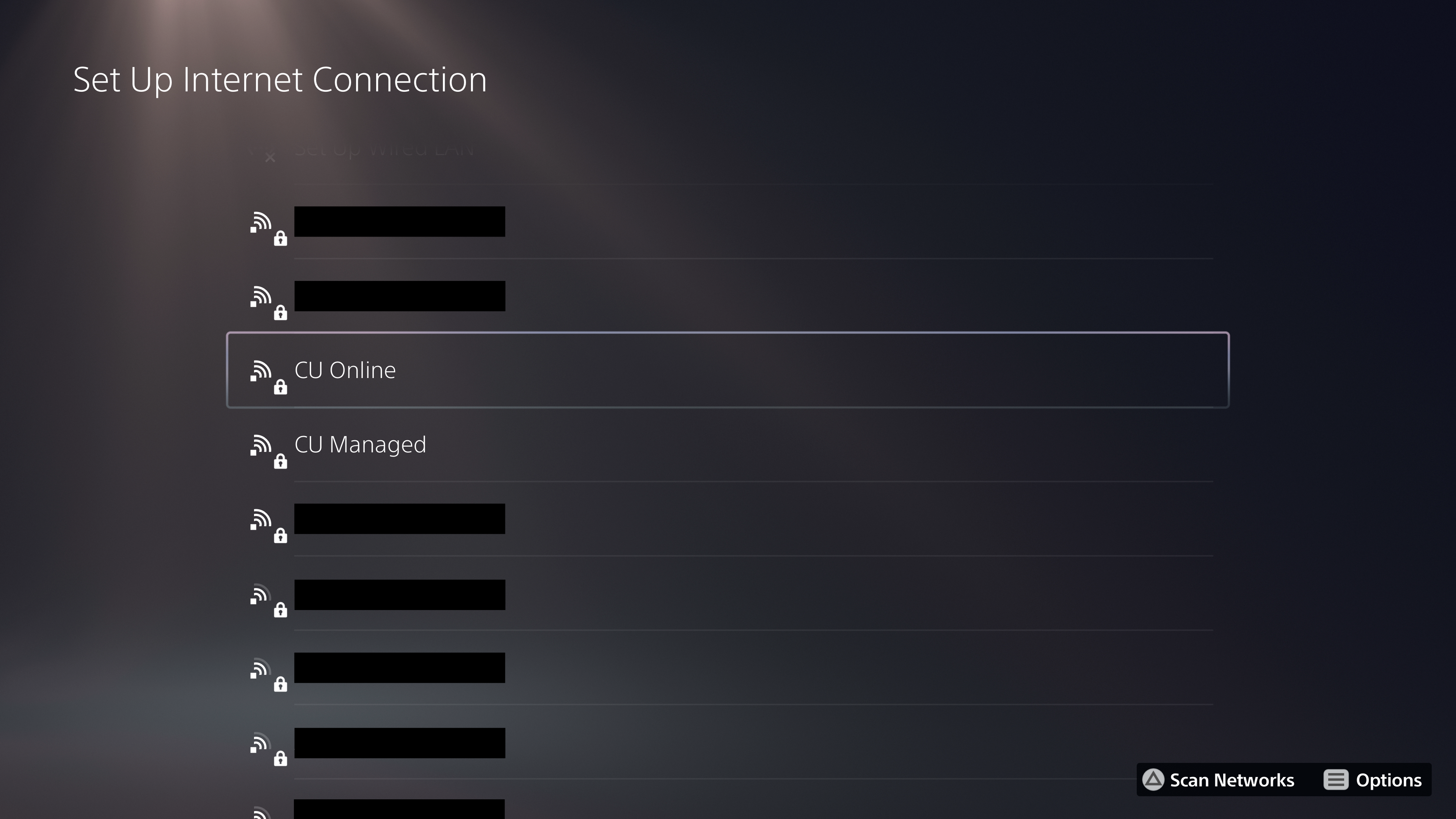
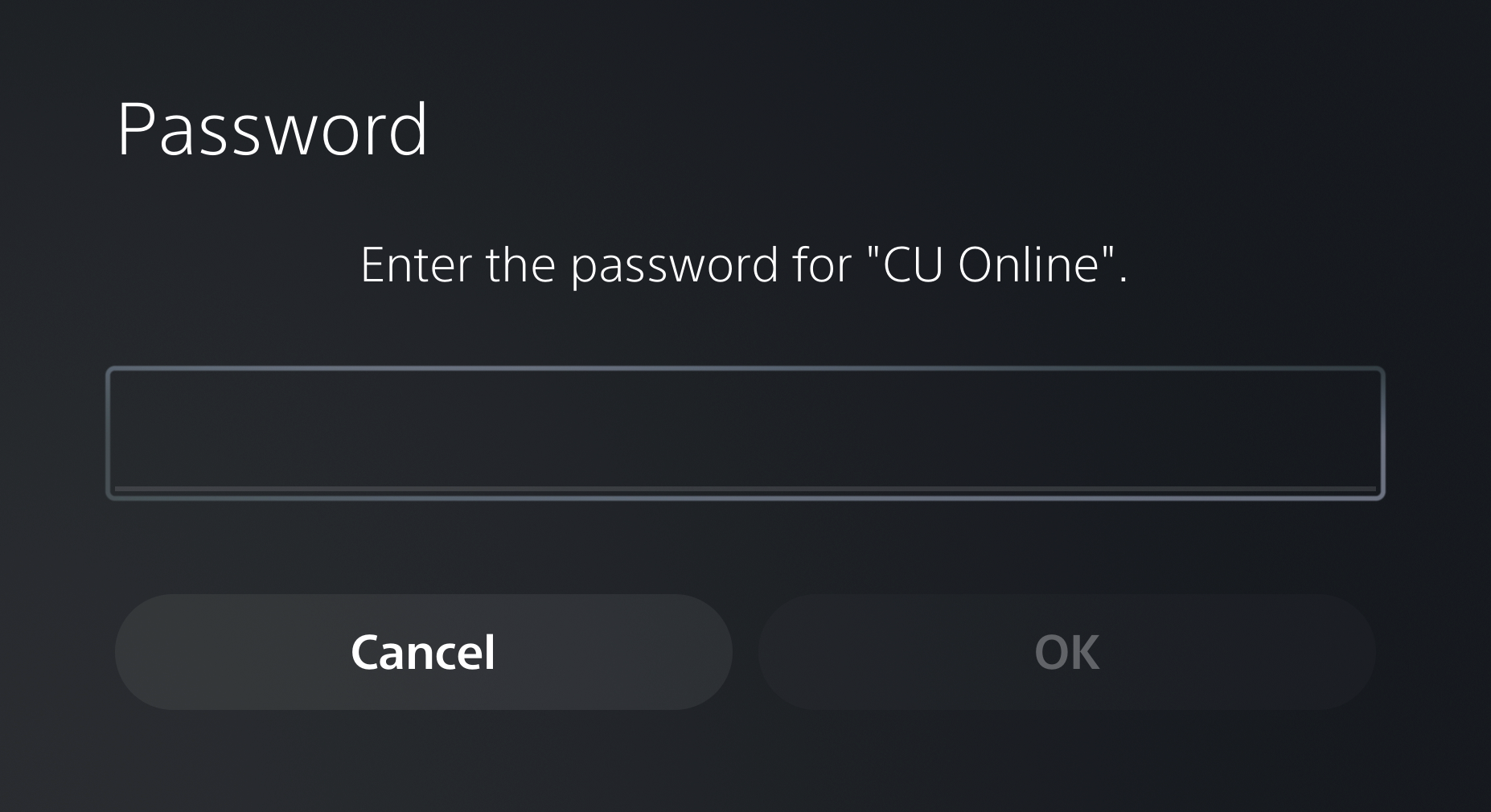
If this occurs, press  to re-scan Wi-Fi networks until the lock disappears:
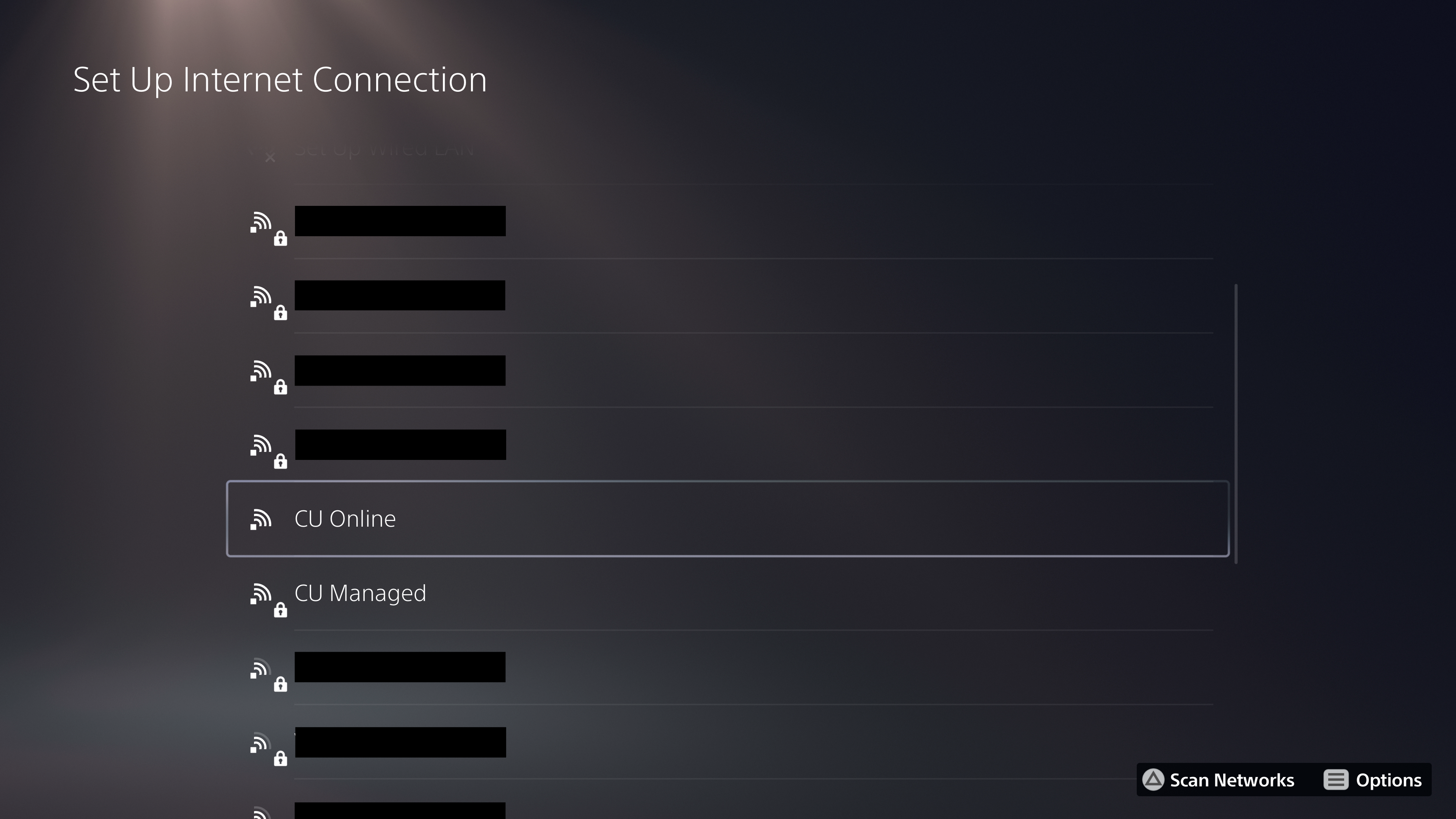
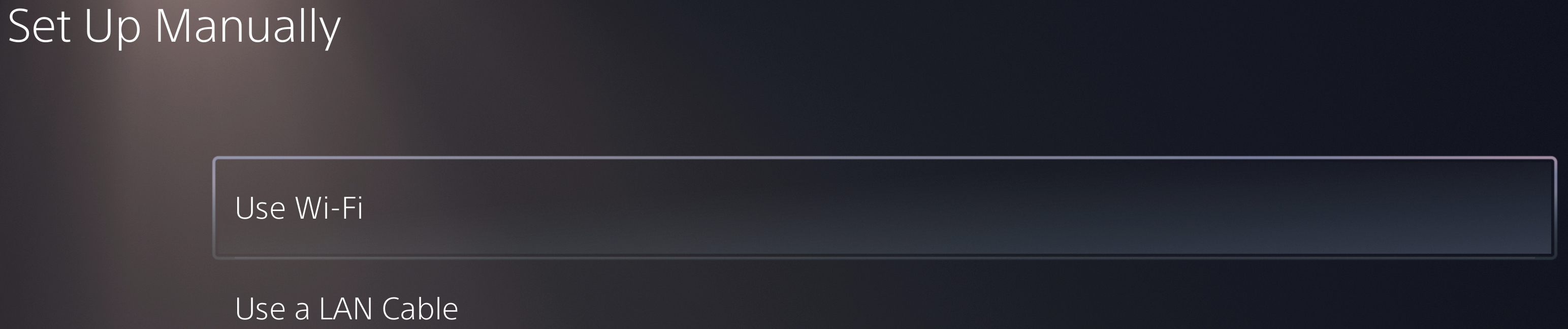
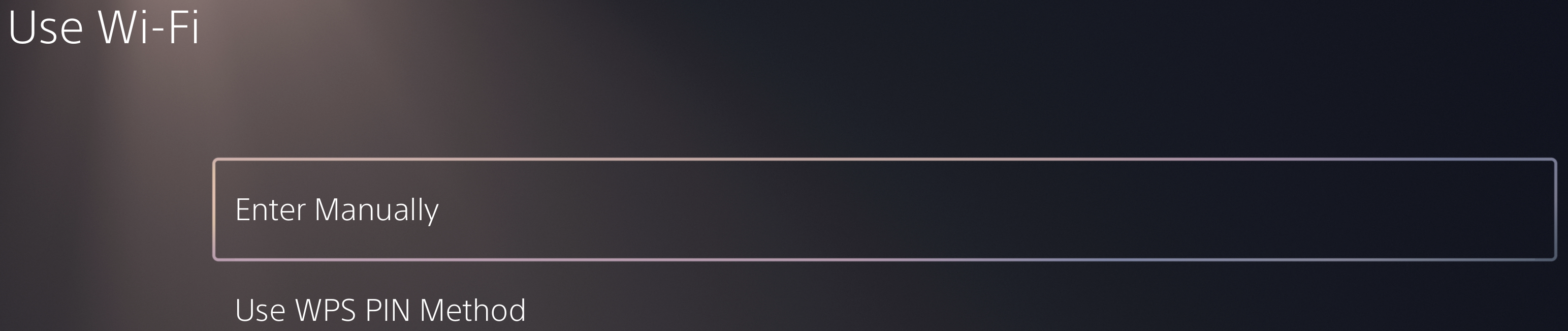
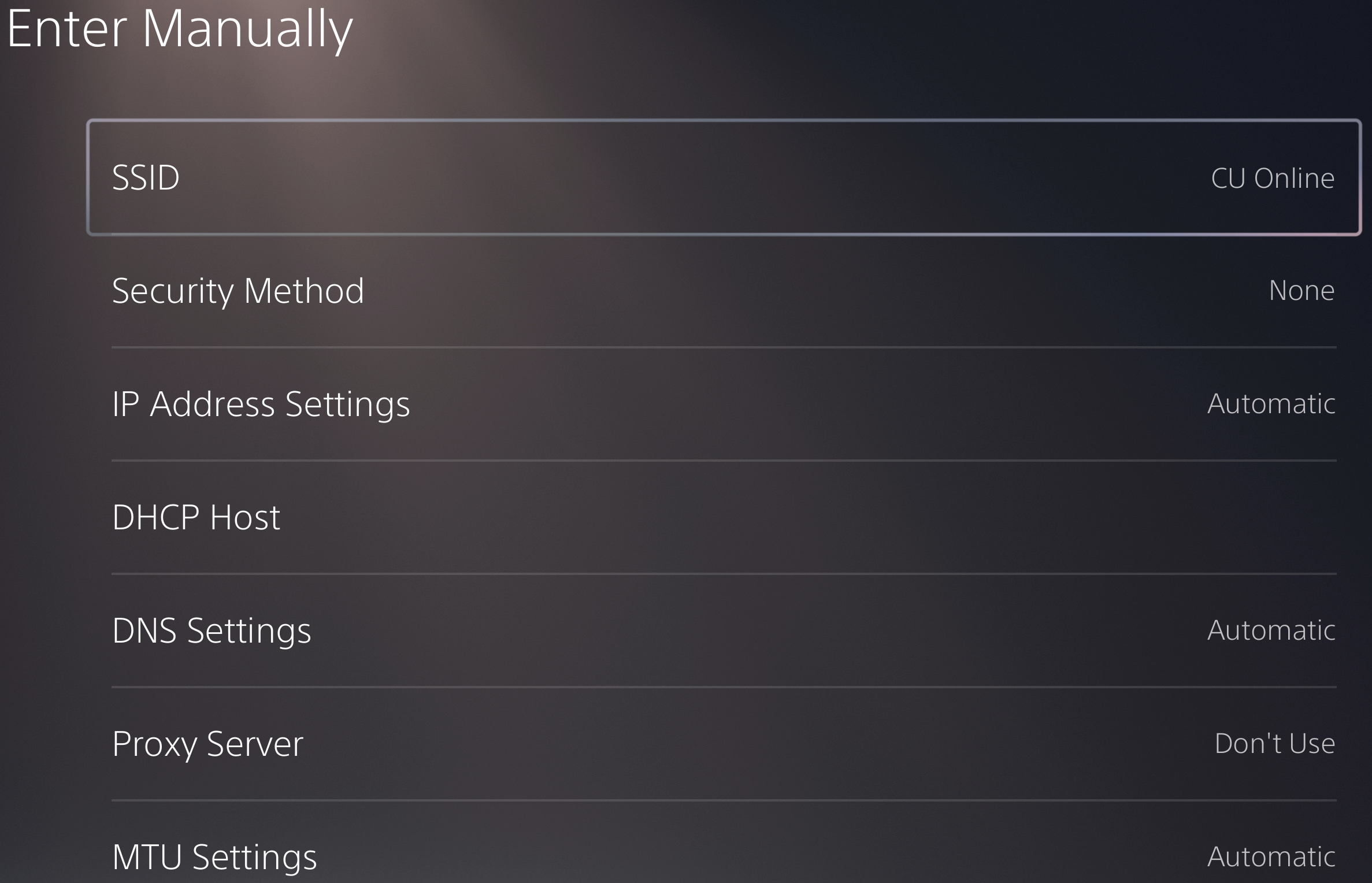
You can also work around this problem by manually configuring the Wi-Fi network on your PlayStation:
- Select "Set Up Manually"

- Select "Use Wi-Fi"

- Select "Enter Manually"

- Enter CU Registered Open for SSID and leave all other settings at the default value.

- Select "Done"
Vizio TVs
Vizio TVs
Some Vizio TVs get confused by the optional encryption on the CU Registered Open Wi-Fi network. The easiest way to resolve this issue is to use CU Registered. If you would like to use CU Registered Open, it is still possible to connect, but requires a few extra steps.
If you are encountering this problem, you will not see CU Registered Open in the list of Wi-Fi networks.
To connect, you will need to select the "Hidden Network" option and enter CU Registered Open as the Access Point Name.
Still having problems?
If you are still experiencing Wi-Fi issues, contact the Technology Help Desk for assistance. Please include your device type, location, and a brief description of the problem.