Find out more on the [Duo two-factor authentication](https://kb.itd.commonwealthu.edu/books/user-accounts/page/two-factor-authentication) page.
##### Error: Connection attempt failed If you are receiving an error stating "Connection attempt failed. Please try again." you may have a corrupt profile.You may receive this error message if you attempt to use the Cisco Secure Client while at the Bloomsburg campus - this is normal. The Remote Access Service isn't available at the Bloomsburg campus, as it is not needed.
To fix this problem, follow these steps to replace your Cisco Secure Client profile with a known good version: - Close Cisco Secure Client - Reinstall the Commonwealth University profile: - macOS: - Press **command ⌘** + **spacebar** - Type **terminal.app** and hit return - Type (or copy/paste) this command, then press return to execute: ``` sudo rm -f /opt/cisco/anyconnect/profile/*.xml ``` - Enter your computer's password to confirm you want to run the command - Type (or copy/paste) this command, then press return to execute: ``` sudo curl -o /opt/cisco/anyconnect/profile/Bloomsburg_University.xml https://kb.itd.commonwealthu.edu/attachments/5 ``` - Close terminal - Windows: - Right click on this link: [Bloomsburg\_University.xml](https://kb.itd.commonwealthu.edu/attachments/5) and choose download or save - Open File Explorer - Open Downloads - Right click on **Bloomsburg\_University.xml** in File Explorer - Choose copy - In the address bar, enter: **C:\\ProgramData\\Cisco\\Cisco AnyConnect Secure Mobility Client\\Profile** - Delete any files of the type "XML Document", such as Default\_AC.xml and Bloomsburg\_University.xml (note: the .xml part of the filename may not be displayed, depending on your computer's settings) - In the main pane, right click and choose paste (if prompted to replace, choose yes) - Restart your computer ##### Last resort: Removing Cisco Secure Client If all else fails, you may try uninstalling the Cisco Secure Client and removing associated program data. This usually isn't necessary, but may fix some problems. - Go to **Control Panel** > **Uninstall a program** [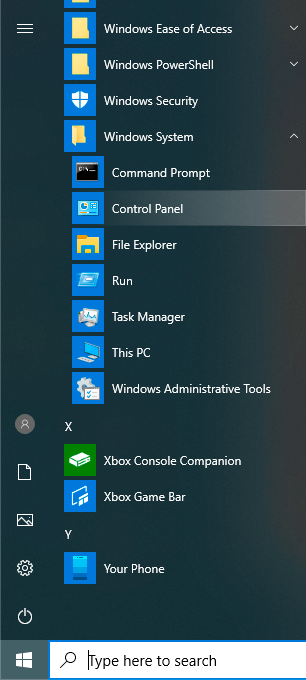](https://kb.itd.commonwealthu.edu/uploads/images/gallery/2023-11/1RuxKQhniUBynJW7-image.png) [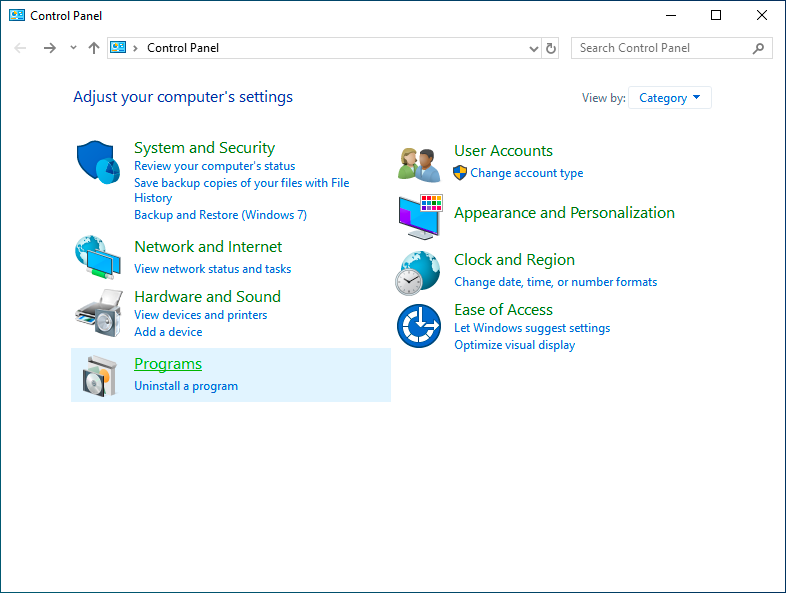](https://kb.itd.commonwealthu.edu/uploads/images/gallery/2023-11/6nAmVPxhVwzv2NpM-image.png) - Uninstall all **Cisco AnyConnect** applications [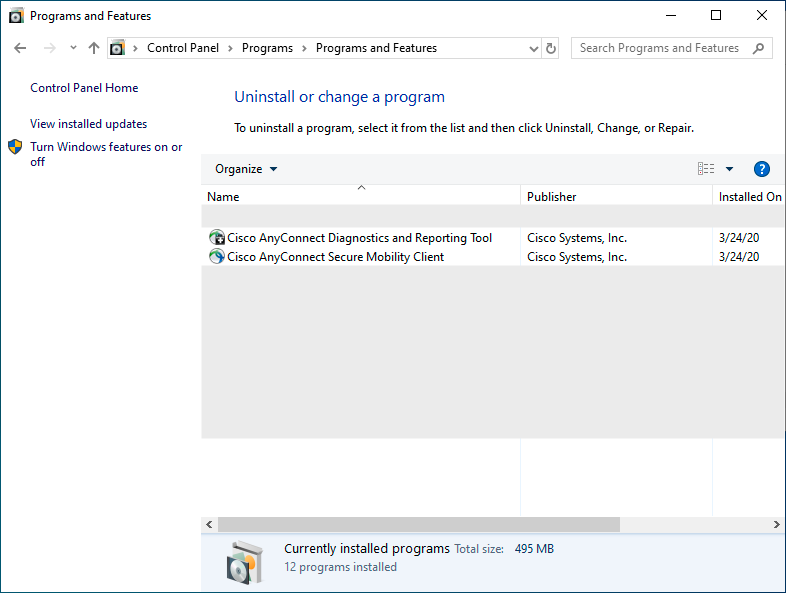](https://kb.itd.commonwealthu.edu/uploads/images/gallery/2023-11/qxyOkzr1bDFCRHPe-image.png) - Open **File Explorer** [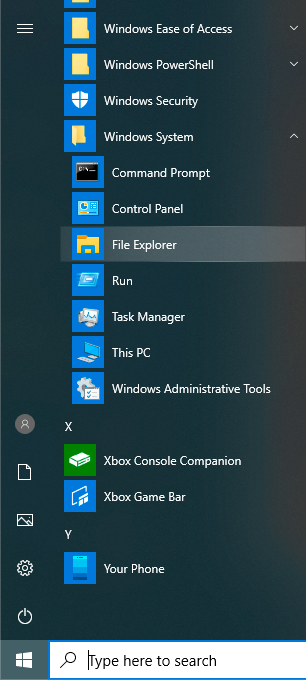](https://kb.itd.commonwealthu.edu/uploads/images/gallery/2023-11/74UzvDg4saL7MT2h-image.png) - In the address bar, enter: **C:\\ProgramData\\Cisco** [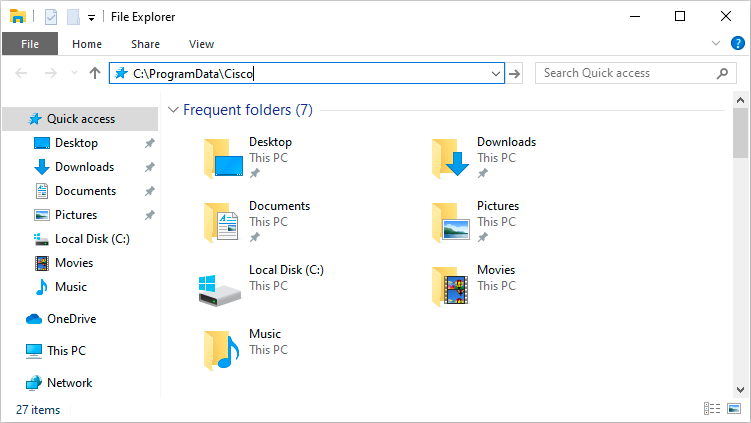](https://kb.itd.commonwealthu.edu/uploads/images/gallery/2023-11/hwegwxDVgdPp0wyH-image.png) - Delete **Cisco AnyConnect Secure Mobility Client** [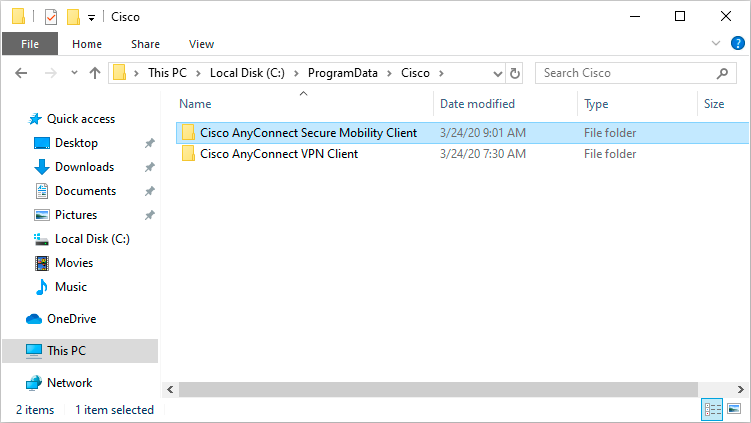](https://kb.itd.commonwealthu.edu/uploads/images/gallery/2023-11/1KYuPwTMmkjKyvSq-image.png) - In the address bar, enter: **%USERPROFILE%\\AppData\\Local\\Cisco** [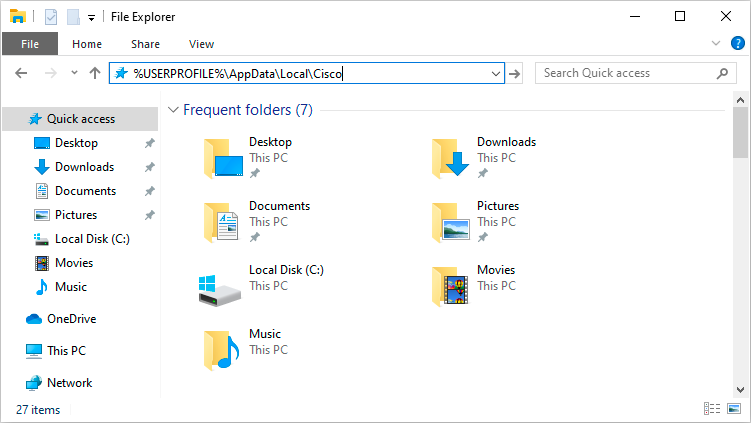](https://kb.itd.commonwealthu.edu/uploads/images/gallery/2023-11/IytlZpxHEiDg1V69-image.png) - Delete **Cisco AnyConnect Secure Mobility Client** [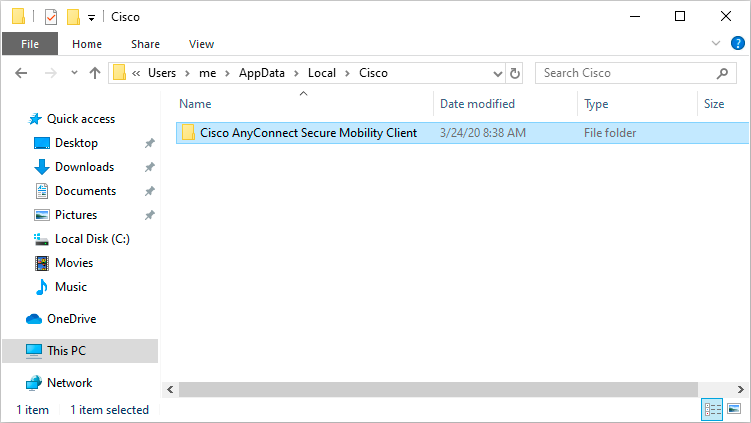](https://kb.itd.commonwealthu.edu/uploads/images/gallery/2023-11/8ZEMpQLHrc1YR5Jm-image.png) - Restart your computer - Follow the steps for [connecting](https://kb.itd.commonwealthu.edu/books/network/page/connecting-to-vpn) to the VPN