# Known Wi-Fi Issues
Apple Devices
#### Apple Devices
##### Not Prompted to Register
If you don't automatically get prompted to register your device when connecting to **CU Registered Open** for the first time:
- Make sure **auto-login** is **enabled** in CU Registered Open settings.
- If you do not have an option for auto-login, try forgetting the CU Registered Open network and setting it up again.
- *As a last resort*: Open a web browser and visit any website to manually initiate the registration process.
##### Repeatedly Prompted for Wi-Fi Password
Apple devices that are signed into the same iCloud account will sync the Wi-Fi password for **CU Registered** to all other devices. To avoid issues, you must specify the same password on all Apple devices during registration.
Once you encounter this problem, it may be necessary to forget the network on all devices and delete the Wi-Fi password from your iCloud account.
To forget the Wi-Fi network:
- Go to **Wi-Fi** settings
- Click the three dots or tap the blue information icon next to **CU Registered**
- Select **Forget This Network**
- Repeat this procedure on all Apple devices
Next, on an Apple Mac:
- Click the **magnifying glass** 🔍 near the upper right corner
- Type **Keychain Access** and press **enter**
- Search for **CU Registered**
- Select the first item, then press the **delete** key
[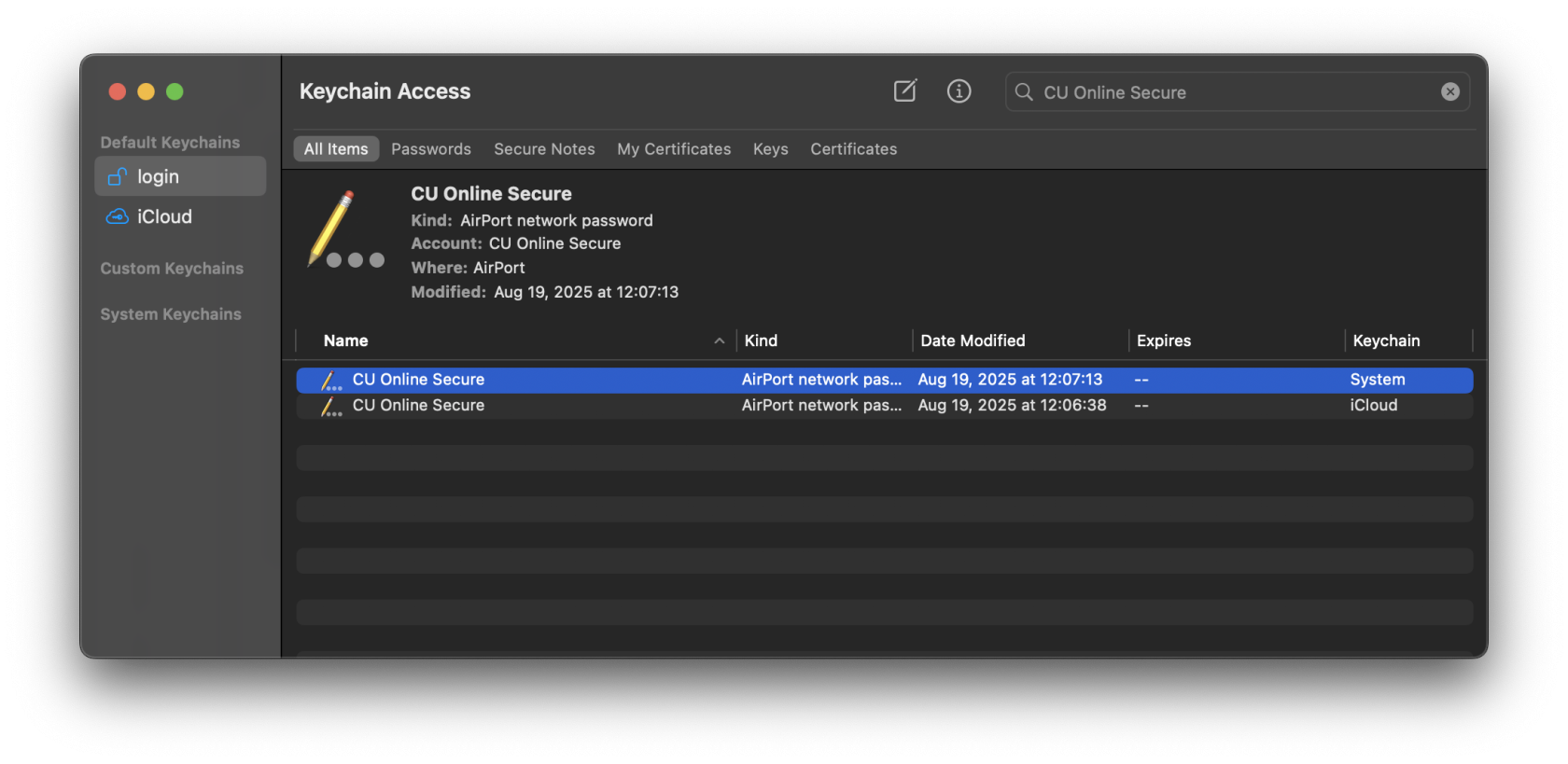](https://kb.itd.commonwealthu.edu/uploads/images/gallery/2025-09/DQcVaT5TrcVXGRKn-image.png)
- It may be necessary to enter your computer password to confirm this change
- If there are multiple entries, delete them all
Once you have forgotten the network on all devices and removed it from your iCloud keychain, make sure you have the same password set for all devices using the Network Registration portal at [https://netreg.commonwealthu.edu](https://netreg.commonwealthu.edu). Now you can set up **CU Registered** again on your devices using the following instructions:
- [Apple Mac](https://kb.itd.commonwealthu.edu/books/network/page/locating-your-devices-mac-address#bkmrk-macos)
- [Apple iPhone/iPad](https://kb.itd.commonwealthu.edu/books/network/page/locating-your-devices-mac-address#bkmrk-apple-ios)
Don't forget to [turn off Private Wi-Fi address](https://kb.itd.commonwealthu.edu/books/network/page/mac-address-randomization) when you connect to **CU Registered** again.
Sony PlayStation
#### Sony PlayStation
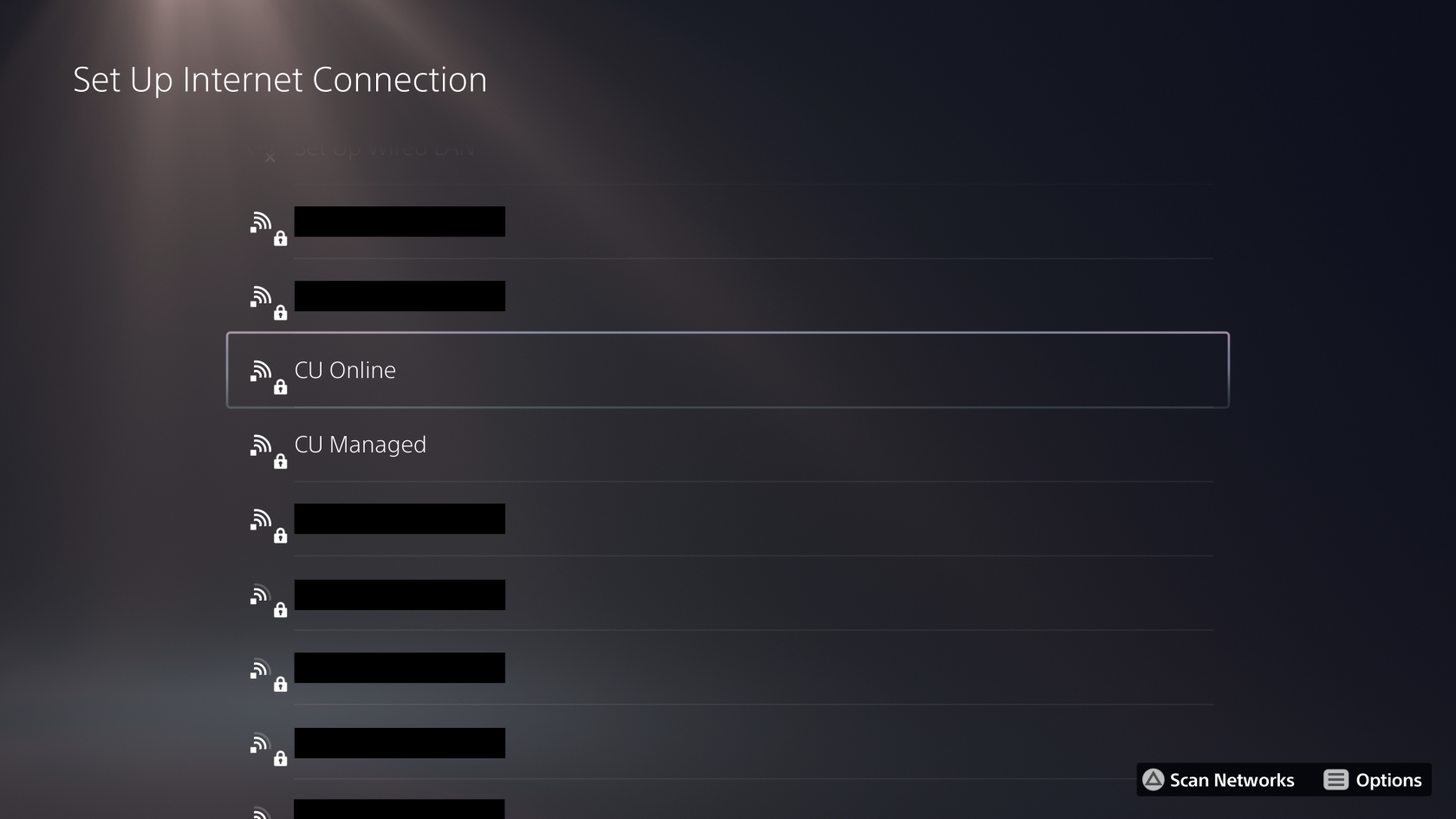
Sony PlayStations sometimes get confused by the optional encryption on the **CU Registered Open** Wi-Fi network. The easiest way to resolve this issue is to use **CU Registered**. If you would like to use **CU Registered Open**, it is still possible to connect, but requires a few extra steps.
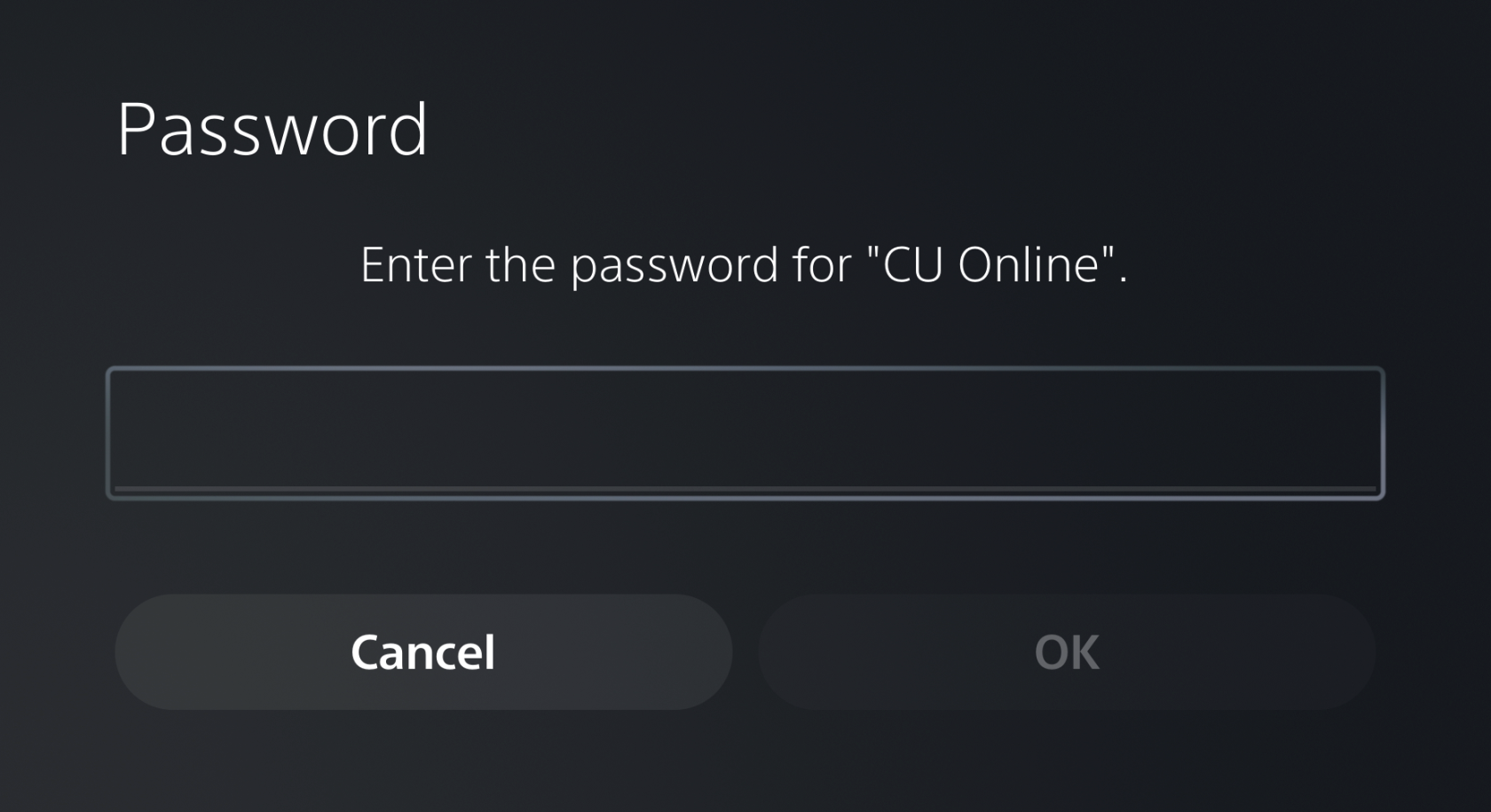
If you are encountering this problem, you will see a lock icon on the **CU Registered Open** network and be prompted for a password if you select it.
[](https://kb.itd.commonwealthu.edu/uploads/images/gallery/2024-08/OUsBJFAZ6qqNGkxU-image.png)
[](https://kb.itd.commonwealthu.edu/uploads/images/gallery/2024-08/ntXUVY2QmK9cL9j9-image.png)
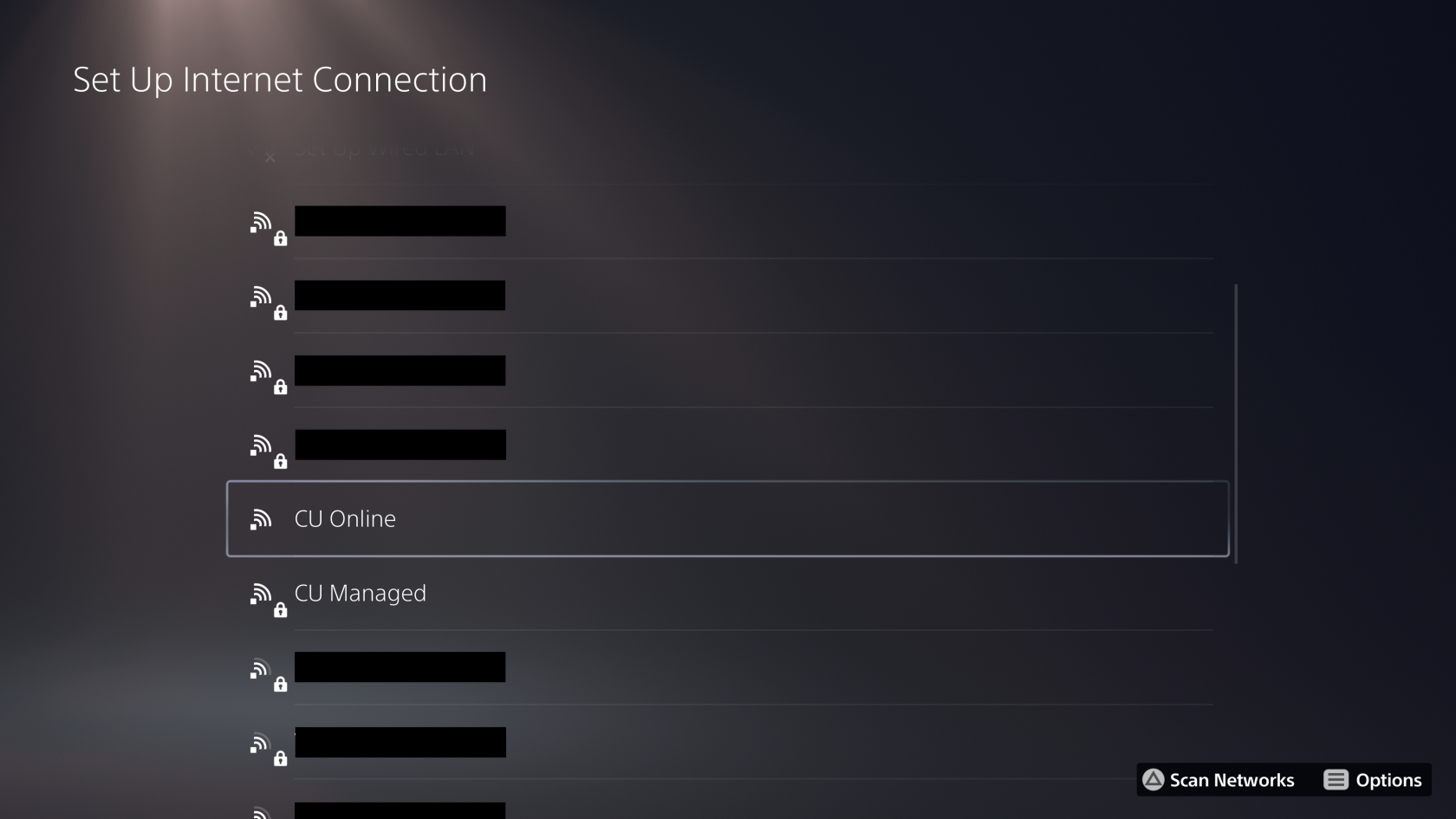
If this occurs, press  to re-scan Wi-Fi networks until the lock disappears:
[](https://kb.itd.commonwealthu.edu/uploads/images/gallery/2024-08/S7sarbJhfNSFTW93-image.png)
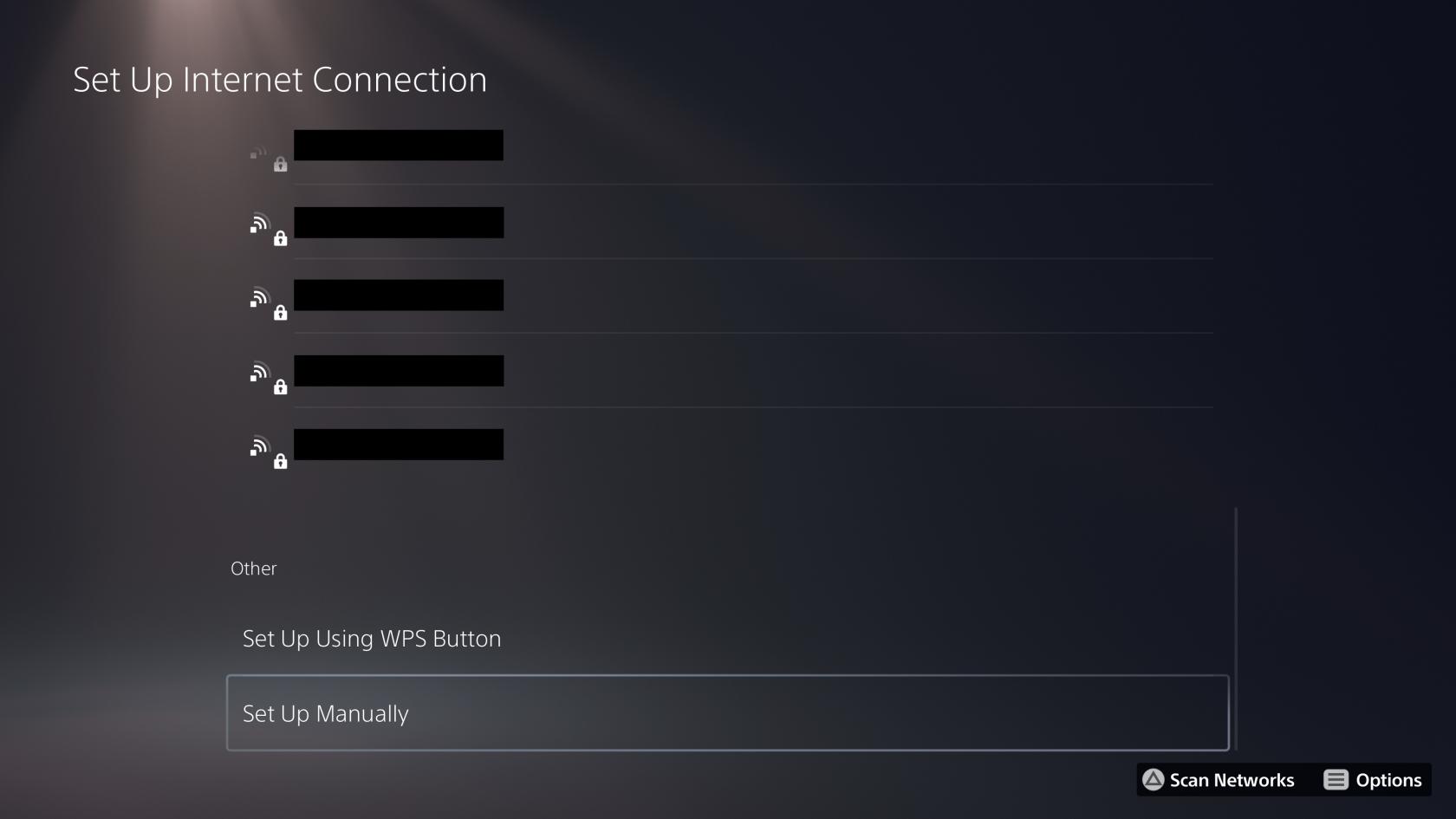
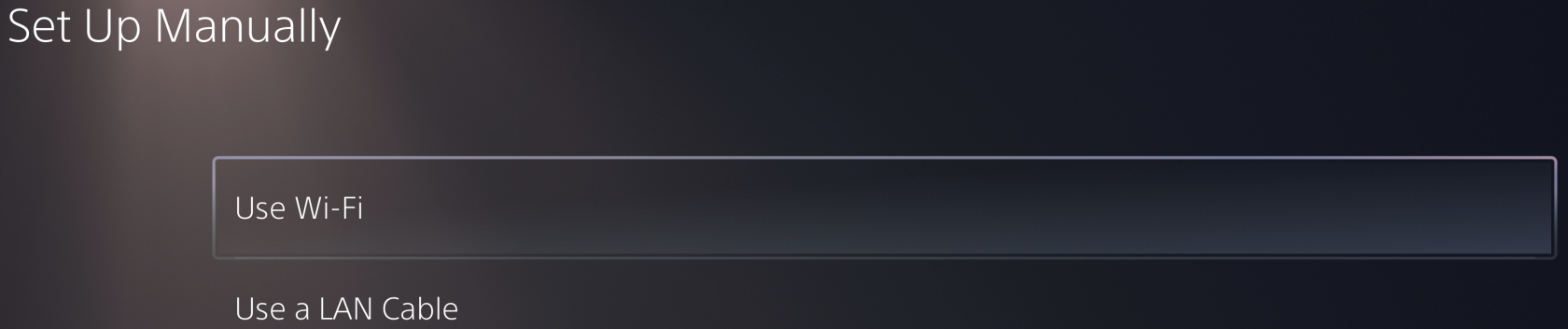
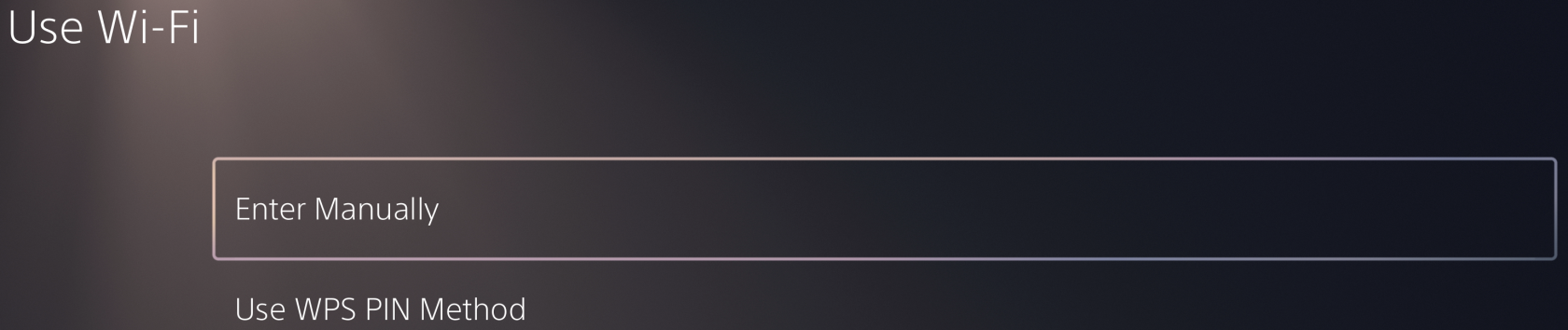
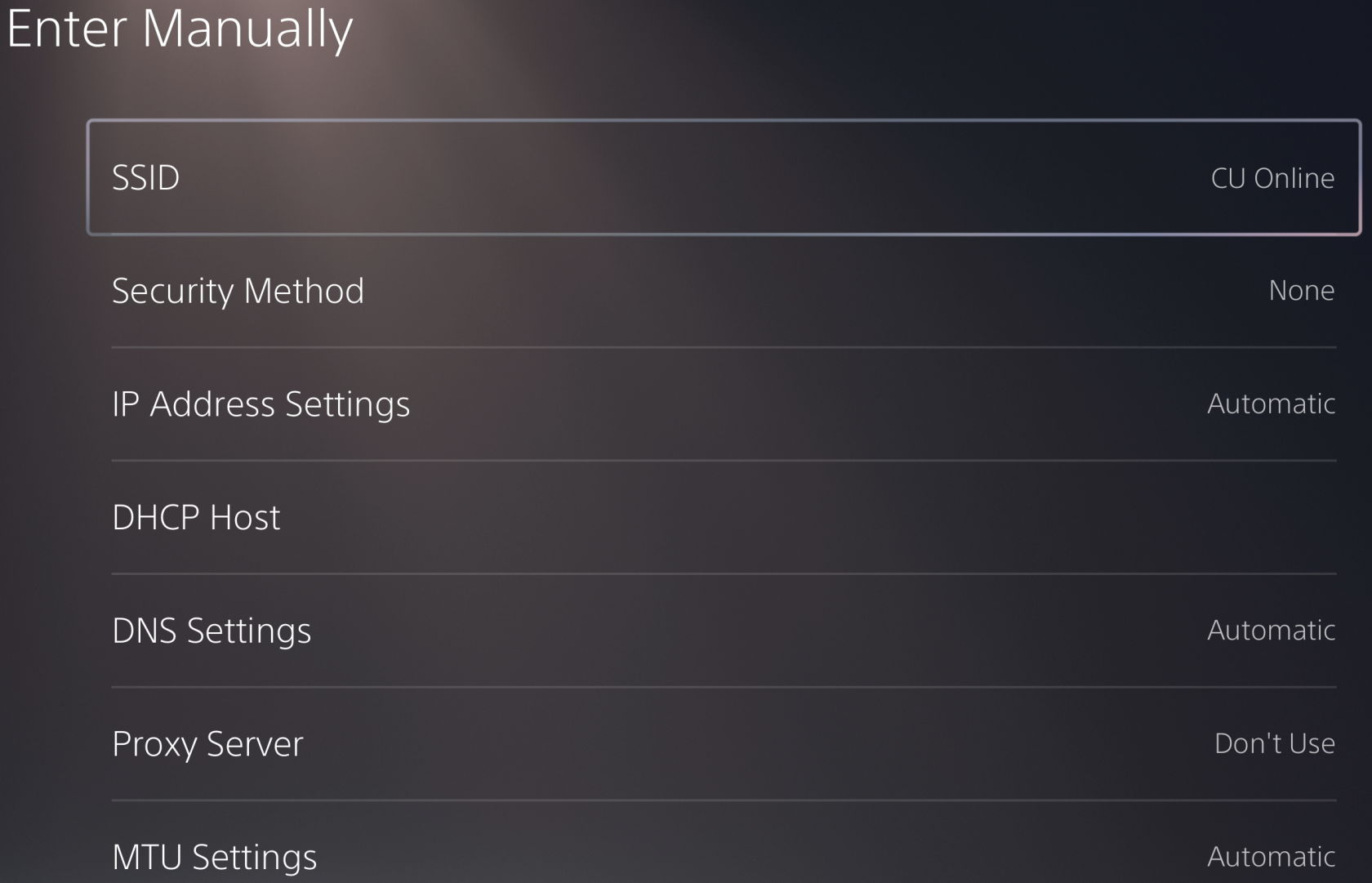
You can also work around this problem by manually configuring the Wi-Fi network on your PlayStation:
1. Select "Set Up Manually"
[](https://kb.itd.commonwealthu.edu/uploads/images/gallery/2024-08/LTDFLx3Veu4mrz4X-image.png)
2. Select "Use Wi-Fi"
[](https://kb.itd.commonwealthu.edu/uploads/images/gallery/2024-08/tI7jaF3DD2UaVdtK-image.png)
3. Select "Enter Manually"
[](https://kb.itd.commonwealthu.edu/uploads/images/gallery/2024-08/z4VwjGbqC4bN274q-image.png)
4. Enter **CU Registered Open** for SSID and leave all other settings at the default value.
[](https://kb.itd.commonwealthu.edu/uploads/images/gallery/2024-08/l8yzfDCivV8MgBLQ-image.png)
5. Select "Done"
Vizio TVs
#### Vizio TVs
Some Vizio TVs get confused by the optional encryption on the **CU Registered Open** Wi-Fi network. The easiest way to resolve this issue is to use **CU Registered**. If you would like to use **CU Registered Open**, it is still possible to connect, but requires a few extra steps.
If you are encountering this problem, you will not see **CU Registered Open** in the list of Wi-Fi networks.
To connect, you will need to select the "Hidden Network" option and enter **CU Registered Open** as the Access Point Name.