Accessing the VPN from on-campus is not supported and will prevent you from accessing all network resources. You must disconnect the VPN to restore network access.
#### University Devices University-managed devices are typically pre-configured with a special VPN profile. Once you launch the Cisco Secure Client, select "CU Managed VPN" from the dropdown and connect. #### Other DevicesIf you haven't connected to the university VPN before, you must first [download the Cisco Secure Client](https://kb.itd.commonwealthu.edu/books/network/page/download-cisco-secure-client).
- Launch Cisco Secure Client - Select "Commonwealth University" from the dropdown, or enter "vpn.commonwealthu.edu" if you don't have that option. - Select "Connect". - Select the appropriate group (Usually "Faculty/Staff", the default). - Enter your username and password, as you do when you log into your office computer. - Enter your Duo Passcode (found in the Duo Mobile app) or leave the Duo field blank for an automatic Duo challenge (Duo Push or SMS). \[[Duo help](https://kb.itd.commonwealthu.edu/books/user-accounts/page/two-factor-authentication)\] - Click OK. # Download Cisco Secure Client The Cisco Secure Client is required to connect to the university's VPN service. Please select your computer's operating system to begin the client download: - [Android](https://play.google.com/store/apps/details?id=com.cisco.anyconnect.vpn.android.avf) - [Chromebook](https://chrome.google.com/webstore/detail/cisco-anyconnect/jacdijibdjifphcecdielmekkmfdpgee) - [iPhone/iPad](https://apps.apple.com/us/app/cisco-anyconnect/id1135064690) - [Linux](https://kb.itd.commonwealthu.edu/attachments/30) (64-bit only) - [Linux on ARM64](https://kb.itd.commonwealthu.edu/attachments/31) (some tablets and low-powered computers, Raspberry Pi) - [MacOS](https://kb.itd.commonwealthu.edu/attachments/34) (all) - [Windows](https://kb.itd.commonwealthu.edu/attachments/32) (most computers) - [Windows on ARM64](https://kb.itd.commonwealthu.edu/attachments/33) (some tablets and low-powered computers, Windows on Apple Silicon) # Troubleshooting VPN ##### Error: Authentication failed If you try logging in, but receive an error stating "Authentication failed" after about two minutes, it is probably because you didn't approve the Duo request. After you log in, the Remote Access Service will contact Duo to see if you are authorized. This usually results in either a notification on your smart phone, or a text message (SMS), if you do not have a smart phone enrolled. You must respond to the notification or enter the SMS code before you can successfully log in.Find out more on the [Duo two-factor authentication](https://kb.itd.commonwealthu.edu/books/user-accounts/page/two-factor-authentication) page.
##### Error: Connection attempt failed If you are receiving an error stating "Connection attempt failed. Please try again." you may have a corrupt profile.You may receive this error message if you attempt to use the Cisco Secure Client while at the Bloomsburg campus - this is normal. The Remote Access Service isn't available at the Bloomsburg campus, as it is not needed.
To fix this problem, follow these steps to replace your Cisco Secure Client profile with a known good version: - Close Cisco Secure Client - Reinstall the Commonwealth University profile: - macOS: - Press **command ⌘** + **spacebar** - Type **terminal.app** and hit return - Type (or copy/paste) this command, then press return to execute: ``` sudo rm -f /opt/cisco/anyconnect/profile/*.xml ``` - Enter your computer's password to confirm you want to run the command - Type (or copy/paste) this command, then press return to execute: ``` sudo curl -o /opt/cisco/anyconnect/profile/Bloomsburg_University.xml https://kb.itd.commonwealthu.edu/attachments/5 ``` - Close terminal - Windows: - Right click on this link: [Bloomsburg\_University.xml](https://kb.itd.commonwealthu.edu/attachments/5) and choose download or save - Open File Explorer - Open Downloads - Right click on **Bloomsburg\_University.xml** in File Explorer - Choose copy - In the address bar, enter: **C:\\ProgramData\\Cisco\\Cisco AnyConnect Secure Mobility Client\\Profile** - Delete any files of the type "XML Document", such as Default\_AC.xml and Bloomsburg\_University.xml (note: the .xml part of the filename may not be displayed, depending on your computer's settings) - In the main pane, right click and choose paste (if prompted to replace, choose yes) - Restart your computer ##### Last resort: Removing Cisco Secure Client If all else fails, you may try uninstalling the Cisco Secure Client and removing associated program data. This usually isn't necessary, but may fix some problems. - Go to **Control Panel** > **Uninstall a program** [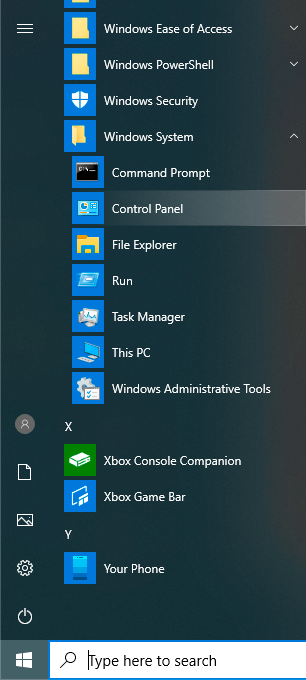](https://kb.itd.commonwealthu.edu/uploads/images/gallery/2023-11/1RuxKQhniUBynJW7-image.png) [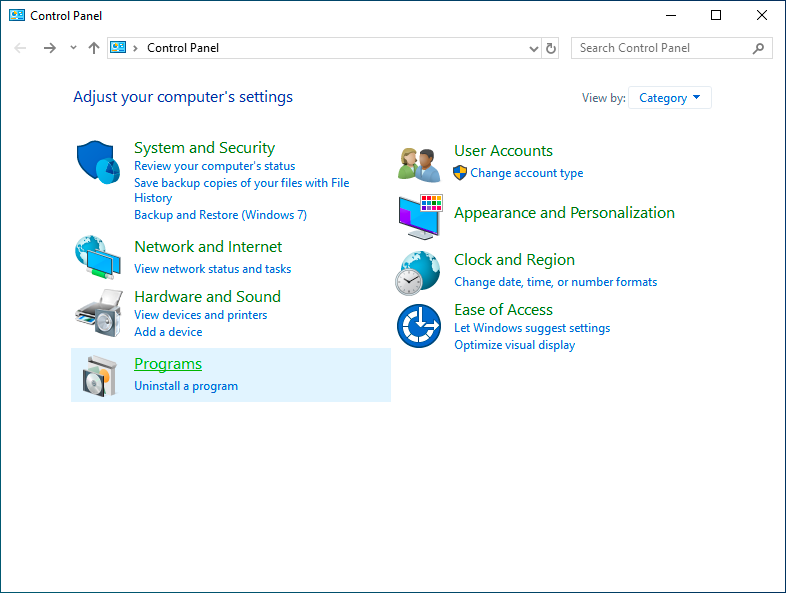](https://kb.itd.commonwealthu.edu/uploads/images/gallery/2023-11/6nAmVPxhVwzv2NpM-image.png) - Uninstall all **Cisco AnyConnect** applications [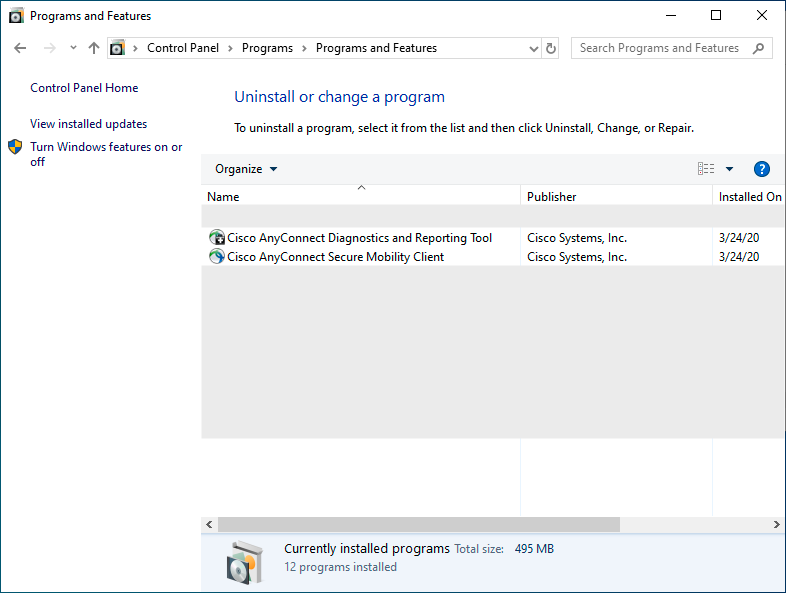](https://kb.itd.commonwealthu.edu/uploads/images/gallery/2023-11/qxyOkzr1bDFCRHPe-image.png) - Open **File Explorer** [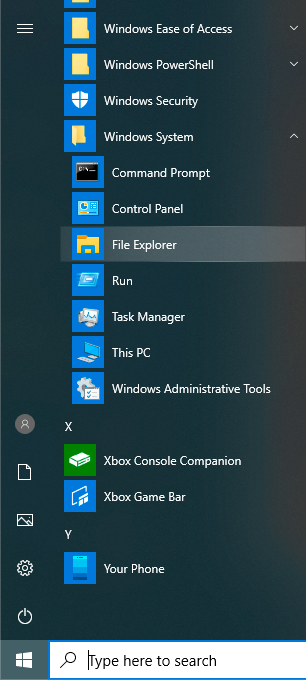](https://kb.itd.commonwealthu.edu/uploads/images/gallery/2023-11/74UzvDg4saL7MT2h-image.png) - In the address bar, enter: **C:\\ProgramData\\Cisco** [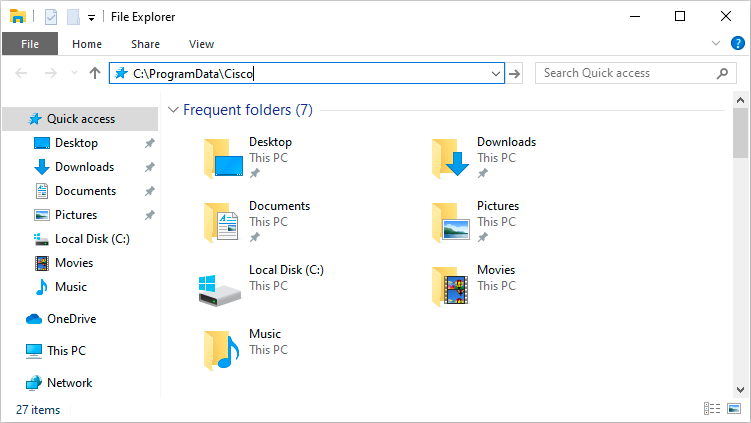](https://kb.itd.commonwealthu.edu/uploads/images/gallery/2023-11/hwegwxDVgdPp0wyH-image.png) - Delete **Cisco AnyConnect Secure Mobility Client** [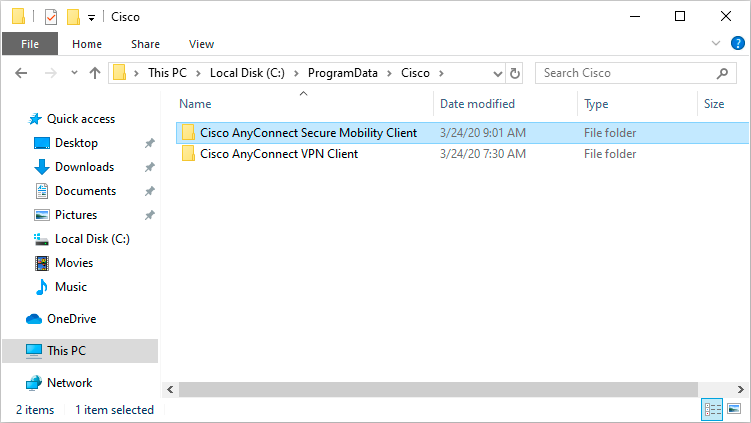](https://kb.itd.commonwealthu.edu/uploads/images/gallery/2023-11/1KYuPwTMmkjKyvSq-image.png) - In the address bar, enter: **%USERPROFILE%\\AppData\\Local\\Cisco** [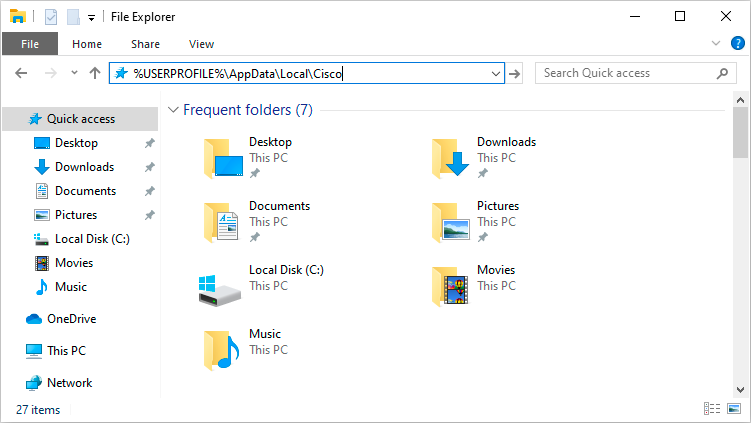](https://kb.itd.commonwealthu.edu/uploads/images/gallery/2023-11/IytlZpxHEiDg1V69-image.png) - Delete **Cisco AnyConnect Secure Mobility Client** [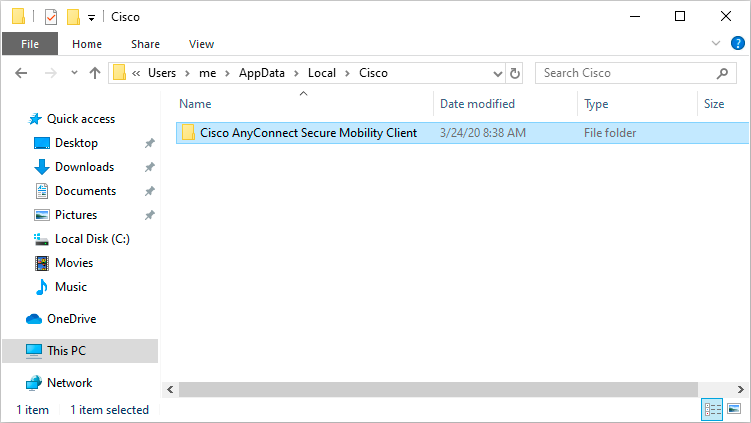](https://kb.itd.commonwealthu.edu/uploads/images/gallery/2023-11/8ZEMpQLHrc1YR5Jm-image.png) - Restart your computer - Follow the steps for [connecting](https://kb.itd.commonwealthu.edu/books/network/page/connecting-to-vpn) to the VPN